Chapter 06

The Application Dictionary

Every screen in the generated application is drawn from database rows, not from hand-written pages. Those rows are the Application Dictionary — the idea borrowed from Compiere ERP, and the reason an administrator can change how the app looks and behaves without a deploy.

The three layers

LayerHoldsComes from
Table and ColumnEvery table and its columns: type, length, mandatory, unique, what a foreign key points at.Your erDiagram
Window, Tab and FieldHow each entity is presented: one window per entity, a tab per record view, a field per displayed column, with order and grouping.Derived from the columns
RoleWhich windows a role may reach, and whether it is read-only.Seeded, then yours
Table and Column. The database as the application understands it. A column marked mandatory here is required in every form; a column with a reference is a lookup rather than a free-text box.
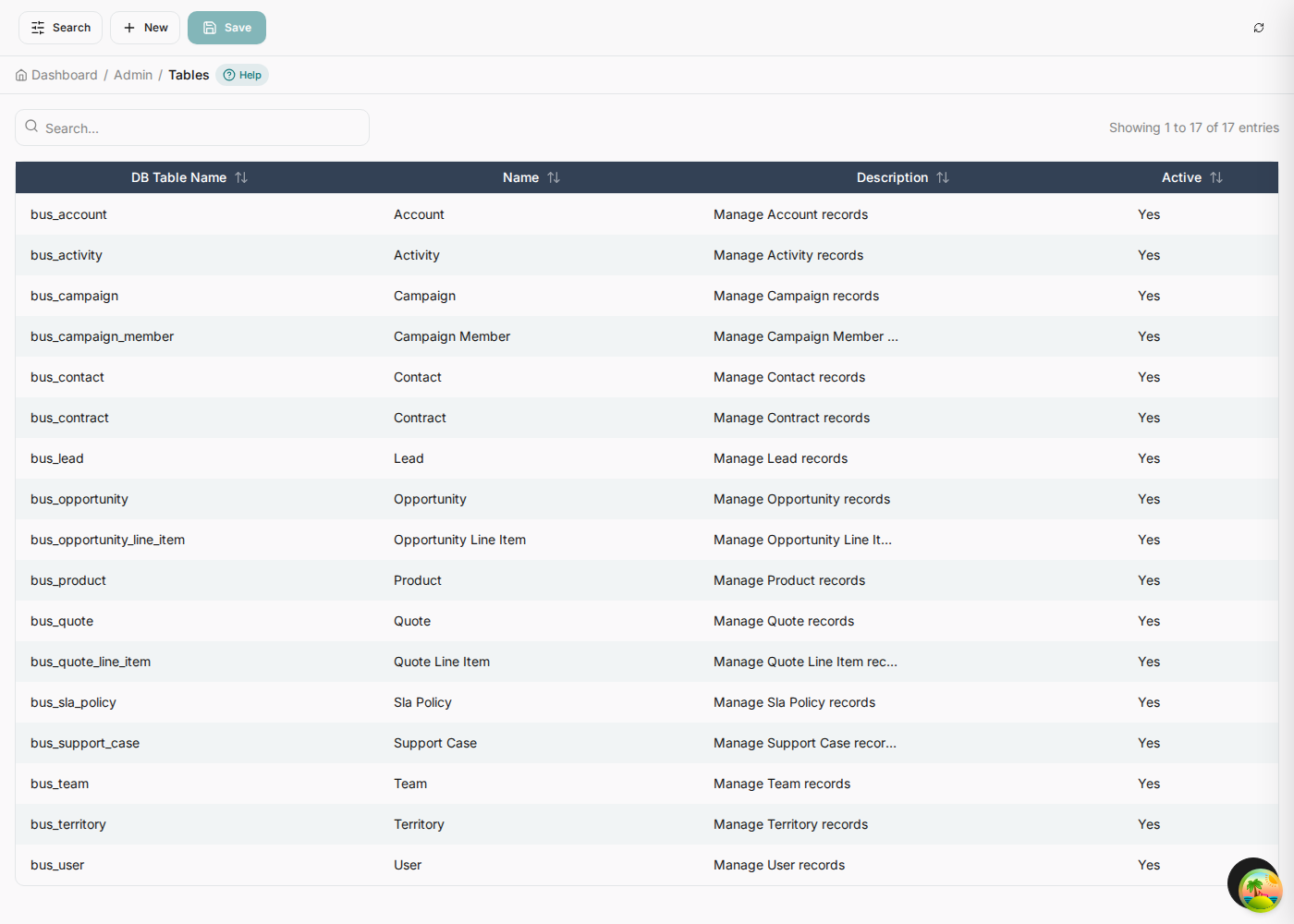
The Table and Column screen listing the generated tables.
All seventeen, and the help that explains them. One bus_ table per entity in the model, each with a label and a description the dashboard reuses. The dialog is careful about the boundary: editing a definition here changes how the application treats a column, not the database schema — a new column still needs a migration.
The Tables screen showing all seventeen generated tables — bus_account, bus_activity, bus_campaign, bus_campaign_member, bus_contact, bus_contract, bus_lead, bus_opportunity, bus_opportunity_line_item, bus_product, bus_quote, bus_quote_line_item, bus_sla_policy, bus_support_case, bus_team, bus_territory and bus_user — with a Table help dialog open over it explaining what the layer is for.
Twenty-three windows. Seventeen entities plus the six Application Dictionary screens. The description column carries the route for the admin ones.
The Windows list showing 23 windows: 17 entity windows plus the six admin ones.

Down a level: window → tab → field

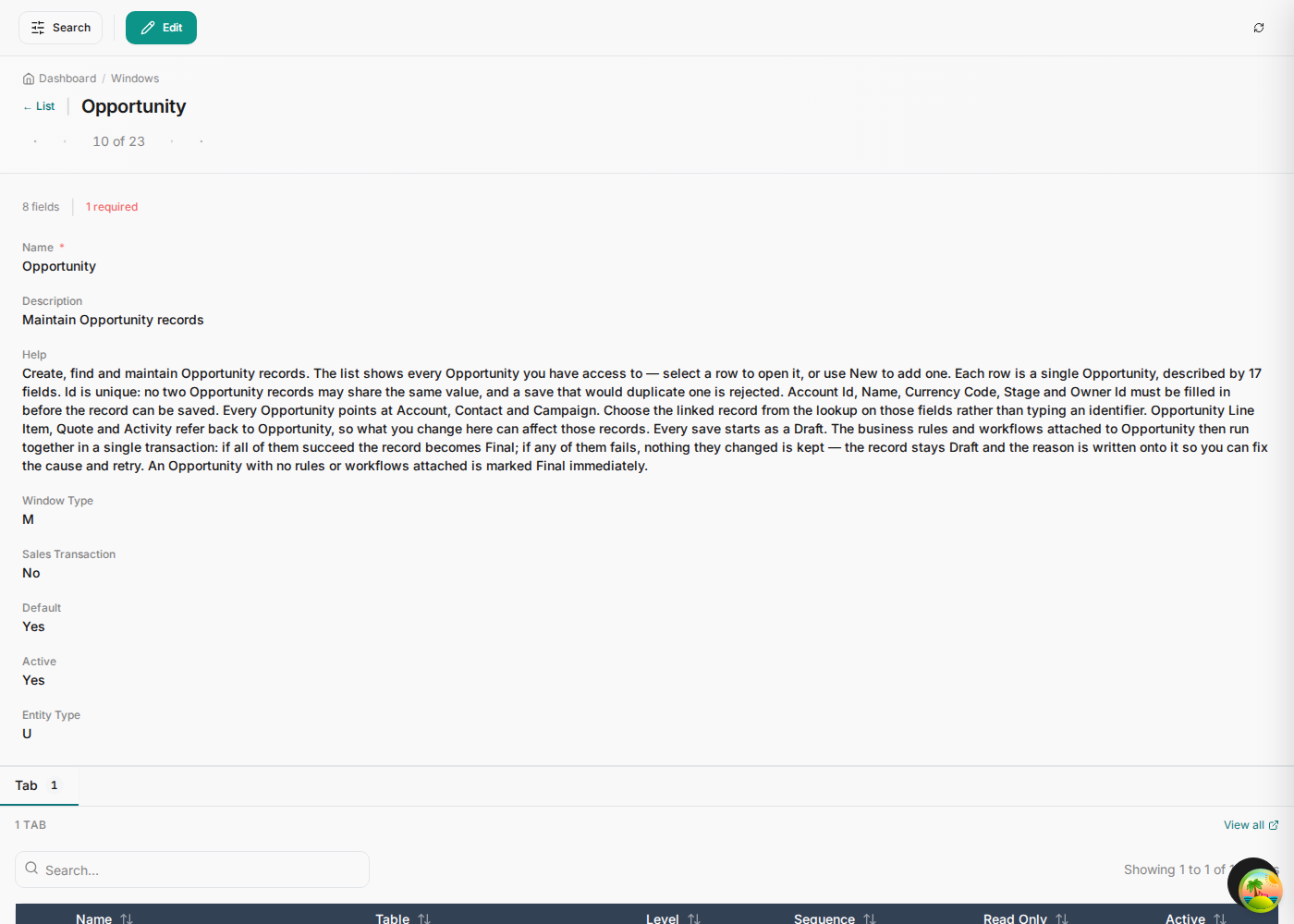
A window. Its metadata, its generated help, and the tabs beneath it.
The Opportunity window detail with its generated help text and a Tab child panel.
Its fields. Every displayed column with its sequence — reorder here and the form reorders.
The Opportunity tab's field list showing each field with its column name, sequence, displayed, read-only and active flags.
The paragraph nobody wrote. This is the Opportunity window's stored help, generated from the model: the required fields by name, the three references out, the three entities that point back in, and the exact transactional promise — all rules and workflows succeed and the record goes Final, any one fails and nothing is kept and the reason is written onto the record. Seventeen of these exist, one per entity, and an administrator can rewrite any of them.
The Opportunity window record in the dictionary, showing eight fields and, under Help, a generated paragraph describing the entity: that Account Id, Name, Currency Code, Stage and Owner Id must be filled in before saving, that Opportunity points at Account, Contact and Campaign, that Opportunity Line Item, Quote and Activity refer back to it, and that every save starts as a Draft which becomes Final only if all rules and workflows succeed.
The dictionary uses its own machinery. The Tab grid's Table column is itself a reference, resolved to a name the same way any business grid resolves a foreign key.
The tab grid inside the Opportunity window, with the Table column reading 'Opportunity'.

Business Rules

The rules your model declared, plus a validation rule per entity, all live and editable. An operations person can change a threshold without a deploy; the model stays the source of what gets seeded next time.

Twenty-five rules. Filter by entity, by operation or by status. Each row shows the rule name, its entity, the operation it fires on, its version and when it was last updated.
The Business Rules screen with 25 rules across 17 entities.
The rule editor. Inputs on the left of the table, outputs on the right, rows read top to bottom until one fits. Test with values runs the table against a record you type; Coverage check warns when there is no catch-all row.
The rule editor for leadQualification showing its decision table, a test panel and a coverage check.

Workflow Designer

Every definition the model seeded, plus anything built in the app. Definitions marked from the model are read-only here and rewritten on the next generation; ones built in the designer carry source: designer and are never touched.

LeadConversion, opened. The trigger reads "When a Lead record is CREATED · Runs when triggered by a rule". Below it the rule gates that apply, then the six steps in order, with the node labels written in the model. The sidebar carries the entity, run mode, step count and recent runs.
The workflow editor for LeadConversion showing the trigger, three rule gates, and six numbered steps.
The steps. Each is typed — Create Record, Update Record — and titled with the label from the flowchart node it was bound to, which is why writing readable node labels pays off later.
The step list of the LeadConversion workflow: create record, create record, create record, update record, update record.

Audit log

One entry per insert, update and delete, written by the same transaction as the change, so the log cannot drift from the data. It is append-only: nothing here can be edited or deleted from the application.

Who changed what. Timestamp, user, action, entity, the columns that moved, and the source. The Verify action checks the entry's integrity — useful when the log is the evidence.
The audit log showing auth logins and entity create and update events with user, entity, changed columns, source and a verify action.
The guarantee, stated on the screen. Before and after values for every column that moved, written by the transaction that moved them, append-only. An audit trail you have to remember to switch on is not an audit trail; this one is a property of how every write works.
The audit log with its help dialog open, explaining that there is one entry per insert, update and delete holding the entity, the row, the user, the time and the before and after values of every column that moved; that entries are written by the same transaction as the change so the log cannot drift; and that the log is append-only.

Roles

Access control is generated too. Four roles are seeded, and the guards the state machines declare on their transitions — [Manager], [Administrator] — resolve against this list rather than against strings scattered through service code.

Four roles, seeded with the application. One master and three standard. A transition guarded by [Manager] in the model is a permission check against this row at runtime — which is why chapter 03's state machines could name roles without anyone wiring them up.
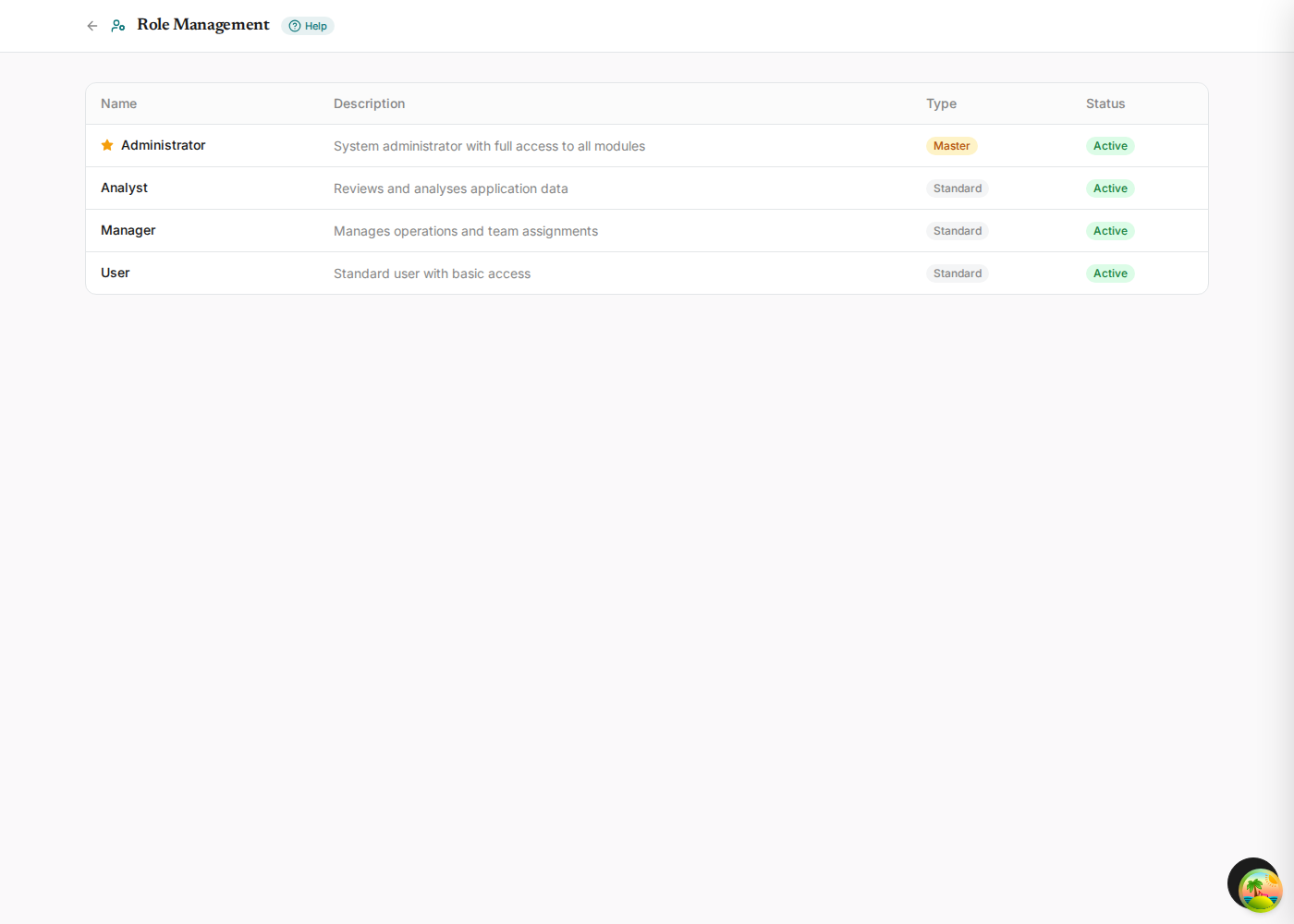
The Role Management screen listing four roles: Administrator, marked Master and Active, described as system administrator with full access to all modules; Analyst, Standard and Active, reviews and analyses application data; Manager, Standard and Active, manages operations and team assignments; and User, Standard and Active, standard user with basic access.

Help, on the dictionary screens too

The six dictionary screens carry their own help, describing what the screen is for and how the pieces relate. It lives in the dictionary like any other help text, so you can rewrite it for your own team.

Business Rules help. Explains evaluation as a decision table, the three action types, and the transaction guarantee.
The Business Rules help dialog explaining what a rule is, how it is evaluated, and that rules run inside the saving transaction.
Workflow Designer help. Explains the difference between "every write" and "when a rule triggers it", and what from the model means.
The Workflow Designer help dialog explaining steps, the Runs when column and model ownership.
The dictionary explaining itself. "The help you are reading now lives here too" — improving it here improves it everywhere it is read.
The Window, Tab and Field help dialog explaining that every screen is drawn from these rows and that the help itself lives here.

What to change where

You want to…Change it in
Add a column, an entity or a relationshipThe model, then regenerate
Reorder or hide a field on a formWindow, Tab and Field
Reword a label or its helpWindow, Tab and Field
Change a threshold in a ruleBusiness Rules — but put it back in the model before the next generation
Add a step to a model workflowThe model. The designer shows it read-only for exactly this reason.
Build a workflow this application needs and the model should not ownThe designer. It survives regeneration.
Grant a role access to a windowRole
The one trap

Editing a model-owned rule or workflow in the app works, and the next generation overwrites it. If a change matters, it belongs in the .mmd. The app is where you tune; the model is where you decide.