Chapter 05

Tour the application

Everything on these screens is derived. No page was designed for the CRM specifically — the layout comes from the dictionary, which comes from the model. Once you can see which part of the model produced which part of the screen, you can change the screen by changing the model.

Signing in

Sign in. Accounts are administrator-created by design; there is no self-service signup in a generated back-office app.
The generated CRM sign-in screen, titled Welcome Back, with email, password, remember me and a note that accounts are created by an administrator.
An entity list. Columns, order and labels all come from the dictionary's field definitions.
The Accounts list showing account number, type, tier, industry, website and phone columns.

The dashboard is your categories

Seven blocks, seven %%category directives. Heading, description and membership are the model's; the eighth block, Application Dictionary, is the generator's own admin surface.
The CRM dashboard with seven category blocks and an Application Dictionary block.
The fastest feedback loop in the whole system

Rename a category or move an entity between groups in the model, regenerate, re-seed, reload: the dashboard reorganises. If your users cannot find things, that is a modelling fix, not a front-end one.

Lists

Every entity gets the same list: search, sortable columns, pagination, a New button, and a Help chip that explains the screen. The columns are the fields marked as displayed in the grid, in their sequence order.
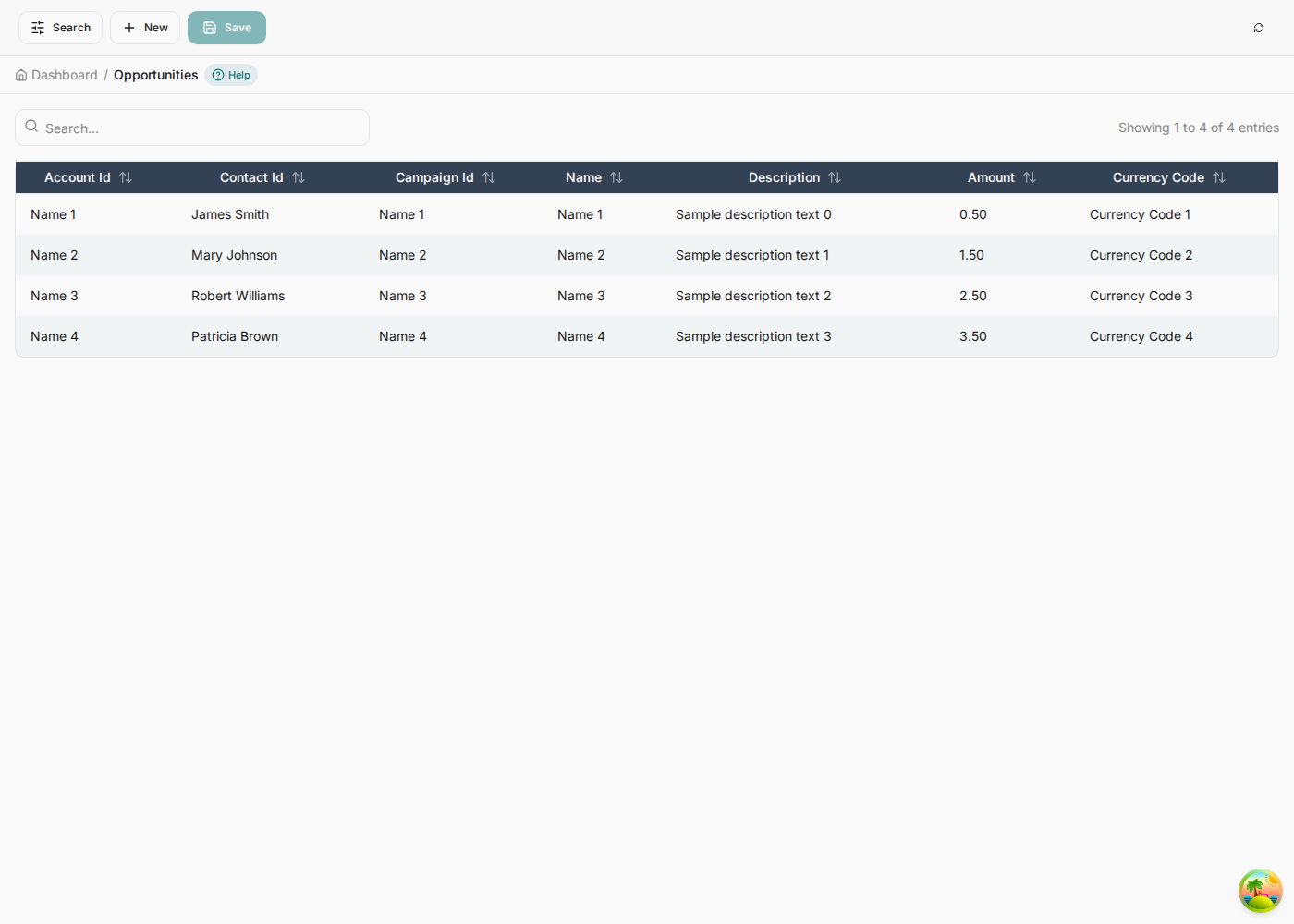
Opportunities. Amount, stage, probability and expected close date.
The Opportunities list.
Contracts. Term, annual value, auto-renew and the renewal notice period.
The Contracts list.
Support cases. Priority, origin, type and SLA timestamps.
The Support Cases list.
Activities. The one entity that points at almost everything else — account, contact, lead, opportunity, case and contract.
The Activities list.

The same screen, seventeen times

None of these is special-cased. Every list below came out of the same generator pass and the same template; the only thing that differs between them is the entity's own field definitions. That is the claim worth checking, so here is the rest of the application rather than a flattering selection of it.

Leads. The marketing end of the model — seven columns, each sortable, with the same search box and Help chip as every other screen.
The Leads list showing first name, last name, company name, email, phone, job title and industry columns, with search and a New button.
Contacts. Account Id leads the row, because a contact belongs to an account and the ERD says so.
The Contacts list showing account id, first name, last name, email, phone, mobile and job title columns.
Quotes. Three references on a single row — opportunity, account and the quote's own name — alongside a status, a version number and a validity date.
The Quotes list showing quote number, opportunity id, account id, name, status, version number and valid until columns.
Campaigns. Dates render as dates and costs as decimals because the model said date and decimal — nothing here was formatted by hand.
The Campaigns list showing name, campaign type, status, start date, end date, budgeted cost and actual cost columns.
Products. The catalogue every opportunity line item and quote line item points at. Seven columns, a search box, sortable headers, a New button — the same furniture as Leads, because it is the same template reading a different row of the dictionary.
The Products list showing product code, name, description, family, list price, unit cost and billing frequency columns.
What "seventeen entities" actually costs you

Nothing, per entity. Adding an eighteenth means adding a block to the erDiagram and regenerating; the list, the form, the lookups, the help text, the audit coverage and the REST routes arrive with it. The screens above are evidence of that, not a portfolio.

Forms, and where each control comes from

This is the part worth studying, because it is where the model's decisions become visible one at a time. Every field carries a badge naming its reference type, and that type decides the control.

New Opportunity. Direct Lookup on the three foreign keys, each showing the referenced record's display name rather than its id. Text, Long Text and Amount on the scalar columns. Required fields carry a red asterisk, and the header counts them: 16 fields, 5 required.
The New Opportunity form showing Account Id, Contact Id and Campaign Id as Direct Lookup selects, Name as Text, Description as Long Text and Amount as Amount.
In the modelBadgeControl
string account_id FKDirect LookupSelect of the referenced entity, labelled by its display column
%%field X.status enum: YDropdownSelect of the enum's values, fetched from the list reference
text descriptionLong TextTextarea
decimal amountAmountNumeric input
datetime due_atDate/TimeDate-time picker
boolean auto_renewYes/NoToggle
email emailEmailEmail input with validation
Enums and lookups side by side. Three dropdowns from %%field … enum:, one integer, two lookups. The difference between a dropdown and a text box here is one line in the model.
The Lead form with Lead Source, Rating and Status rendered as Dropdown selects while Score stays an integer input and Owner Id stays a Direct Lookup.

From the list to the record

The three screens every entity has are the same three screens: a list you search and sort, a form you fill in, and a detail view of what you saved. Here is one entity through all three, so the progression is visible rather than implied.

1 · The list. Search, sortable columns, a Help chip, and New.
The Leads list showing four leads with first name, last name, company name, email, phone, job title and industry columns, a search box, and Search, New and Save buttons.
2 · The form. Controls chosen by field type, required fields marked, the counts in the header.
The New Lead form with its fields laid out and required fields marked, showing the field and required counts in the header.

Saving is not a single event. Every save starts as a Draft; then the rules and workflows attached to the entity run together in one transaction. If all of them succeed the record is promoted to Final. If any fails, nothing they changed is kept, the record stays Draft, and the reason is written onto it.

3 · The record. The FINAL badge means every rule and workflow bound to Lead ran and succeeded. Fields are grouped — General carries the identifying columns, Details the rest — and the record counter lets you page through the list without going back to it.
A Lead detail view for Dana Whitfield showing a FINAL badge, 17 fields with 7 required, grouped into General and Details.
A Draft that will not go Final is a message, not a bug

It means a rule refused the write or a workflow step failed, and the record carries the reason. That is the system telling you the model disagreed with the data — usually a required field a saga did not supply, or a validation-error action doing exactly its job.

Related records

A detail screen shows the children the ERD says it has. Because relationships are declared, the application knows an Opportunity has line items, quotes and activities, and shows them in place rather than making you search for them.

References resolve to names. A foreign key column shows the referenced record's label, not its UUID — in lists as well as forms. That resolution is what a declared relationship buys you.
The Opportunity list with account and contact columns resolved to names.

Help on every screen

Each window carries help generated from the model: what the entity is, which fields are mandatory, which are lookups, which other entities point back at it, and what happens when you save.

Help for Lead. Written from the model: it names the seven required fields, says Campaign is a lookup, notes that Campaign Member and Activity refer back to Lead, and explains the draft-to-final cycle. Field help lists every column and its rule.
The Lead help dialog with a window overview, a tabs section and a fields section listing each field and its help text.
Help is editable

The text lives in the dictionary (sys_window.help, sys_tab.help, sys_field.help), so an administrator can rewrite any of it from Window, Tab and Field without touching the model or the code — and re-seeding will not clobber their edit.